Sysmon & MITRE ATT&CK - Endpoint Detection Lab
Sysmon & MITRE ATT&CK
Summary
Successful beginner-level endpoint detection lab. Demonstrated installing and using Sysmon (and fallback to native Windows auditing where necessary), generating benign PowerShell activity, locating and extracting telemetry in Event Viewer, mapping the activity to MITRE ATT&CK (T1059.001), and verifying service management. Next steps: add logging ingestion to a SIEM (Kibana/Splunk), craft Sigma rules, and run a small set of additional ATT&CK-mapped experiments
Aim of the Experiment
To map a Cyber attack to the MITRE ATT&CK Matrix.
Objective
Learning objective
- To install “Sysmon” tool to detect a cyber attack and then map it to the MITRE ATT&CK Matrix/Framework
Prerequisites
- Windows Operating System (With admin Privileges) ( Windows 10/11)
- Stable Network Internet Connection.
Description
“Sysmon” also known as the “SystemMonitor” is a Windows tool from Microsoft SysInternals that records detailed system activity such as process creation, network connections, and file changes. It helps detect and investigate suspicious behavior by providing decent quality logs that can be mapped to MITRE ATT&CK Matrix/Framework,
MITRE ATT&CK Framework is a globally recognized knowledge base that describes the tactics, Techniques, and Procedures (TTPs) used by cyber attackers. It helps security teams to understand, detect and defend from cyber against real-world threats by mapping attackers behavior across different stages of an attack.
Procedure
Hypothesis 1
Installing in the Virtual Machine.
1.Install and configure Windows 11 from Appstore ( Previous Experiment)
- Install Sysmon from windows website. (https://learn.microsoft.com/en-us/sysinternals/downloads/sysmon)
- Create a temp file and extract the sysmon file in the temp file.
- Open Windows power shell as Admin and then change the location to the path where sysmon is located.
- To install the Sysmon type in the following command “.\Sysmon64.exe -i “ (Where “i” is install with a config file.).
- In Windows VM virtualization security it disabled hence unable to install “sysmon” (using windows 11 latest version)
error:
Loading configuration file with schema version 4.90 Configuration file validated. Sysmon64 installed. SysmonDrv installed. StartService failed for SysmonDrv: This driver has been blocked from loading Failed to start the driver: This driver has been blocked from loading
Stopping the service failed: The service has not been started. SysmonDrv removed. Stopping the service failed: The system cannot find the file specified. DeleteService failed: Access is denied.
Result: Experiment failed on Virtual Machine. (Unsuccessful.**)
Sysmon’s driver was blocked due to system protection features, preventing it from starting.)
Hypotheses 2
Installing sysmon in the original windows desktop
- Installed the sysmon tool with ease and no problems occurred.
- download the sysmon config file from the githhub(Olafhartong) {https://github.com/olafhartong/sysmon-modular/blob/master/sysmonconfig.xml}
- Verify if the sysmon service is installed in the regedit.
- If not installed, open up the “Powershell” as “admin” and then change your directory to the where is Sysmon file is downloaded.
- Install the Sysmon using the following command {For 64-bit use this command} ( ./Sysmon64.exe -accepteula -i sysmonconfig.xml), {For 32-bit use this command} (./Sysmon.exe -accepteula -i sysmonconfig.xml)
- The output will display as “Sysmon64 Started” {Or whatever version you have installed}
- To test it out ,open up the command prompt and type in benign Malicious command.
- To ensure it has been logged open up the Event-viewer→Applications and Service Logs → Microsoft → Windows → Sysmon.
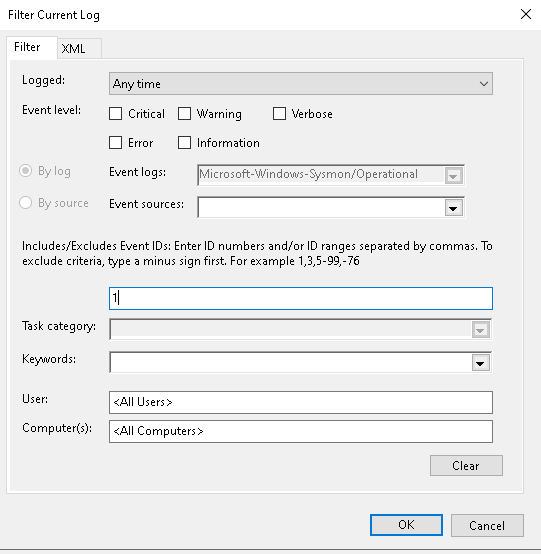
- On the Actions side{Which is on the right side} Operational Section click on the “Filter Current Log”, this opens up a dialogue box in the “filter” tab there is a section which says
in that you should include “1” where 1 means “Process Create (most useful for validating process creation logging).
Other various Events such as.
- Event ID 1: Process creation
- Event ID 3: Network connection
- Event ID 11: File creation
- Event ID 6: Driver loaded
Note: For more Events Ids visit the website: https://learn.microsoft.com/en-us/sysinternals/downloads/sysmon
- Click on the event which contains the “command”, underneath there will be 2 tabs “General” and “Details”.
- I observed the details which includes “Command line”, Rule name, technique name, User, parent Process Guid, Parent Process ID etc.
- Opened MITRE ATT&CK website and mapped it to the particular attack and diagnosed it.
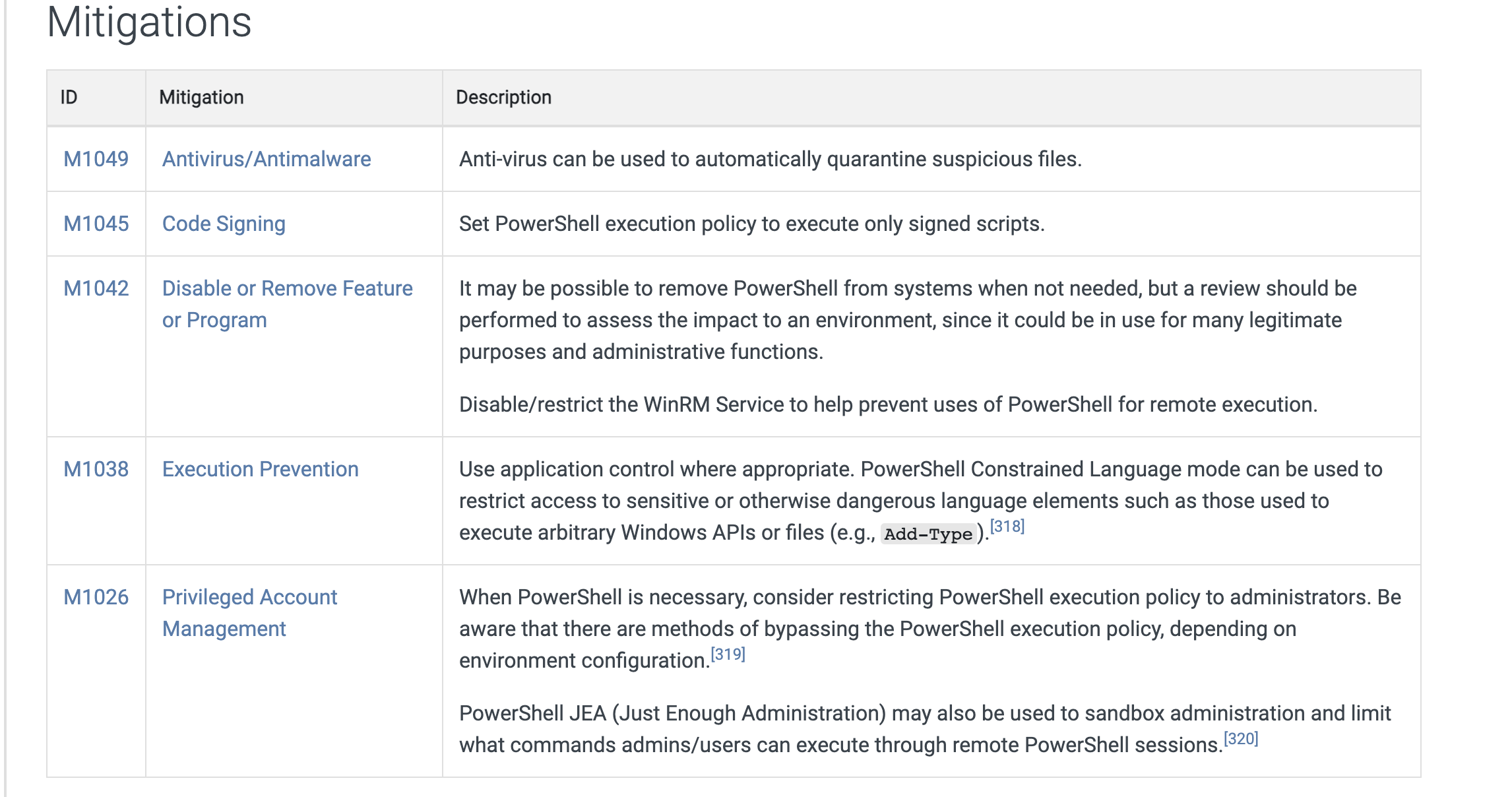
- Mitigations are also available for the specific attacks.
Conclusion: Successfully detected the attacked using the sysmon and then diagnose it using the MITRE ATT&CK website.
T1059.003- Windows Command Shell
Technique: T1059.003 — Windows Command Shell. In your notes, record: victim ran a Windows Command Line process with suspicious flags (benign in lab), captured in Sysmon Event ID 1, command line visible.
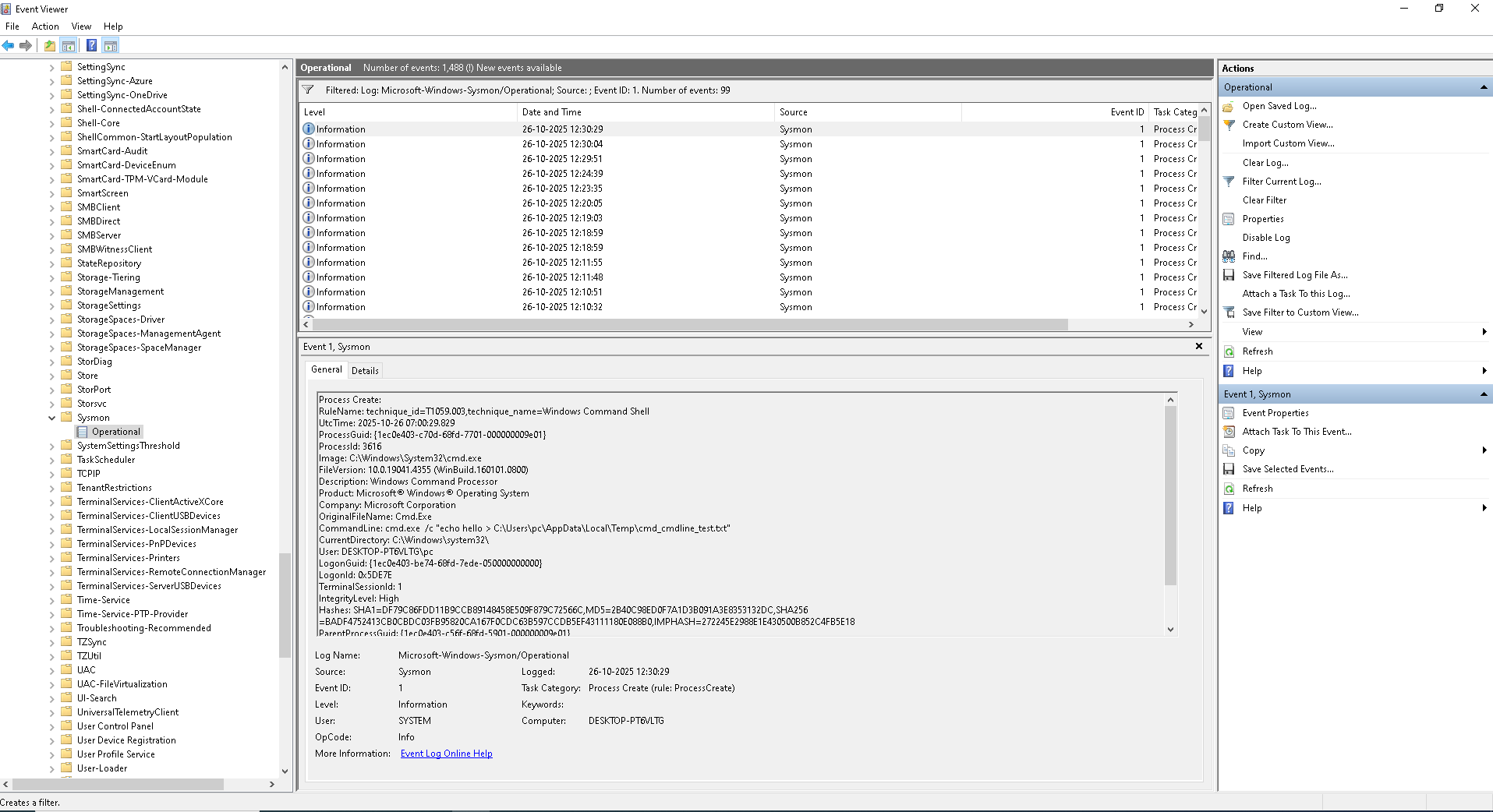
Windows Command Getting Logged in the Sysmon
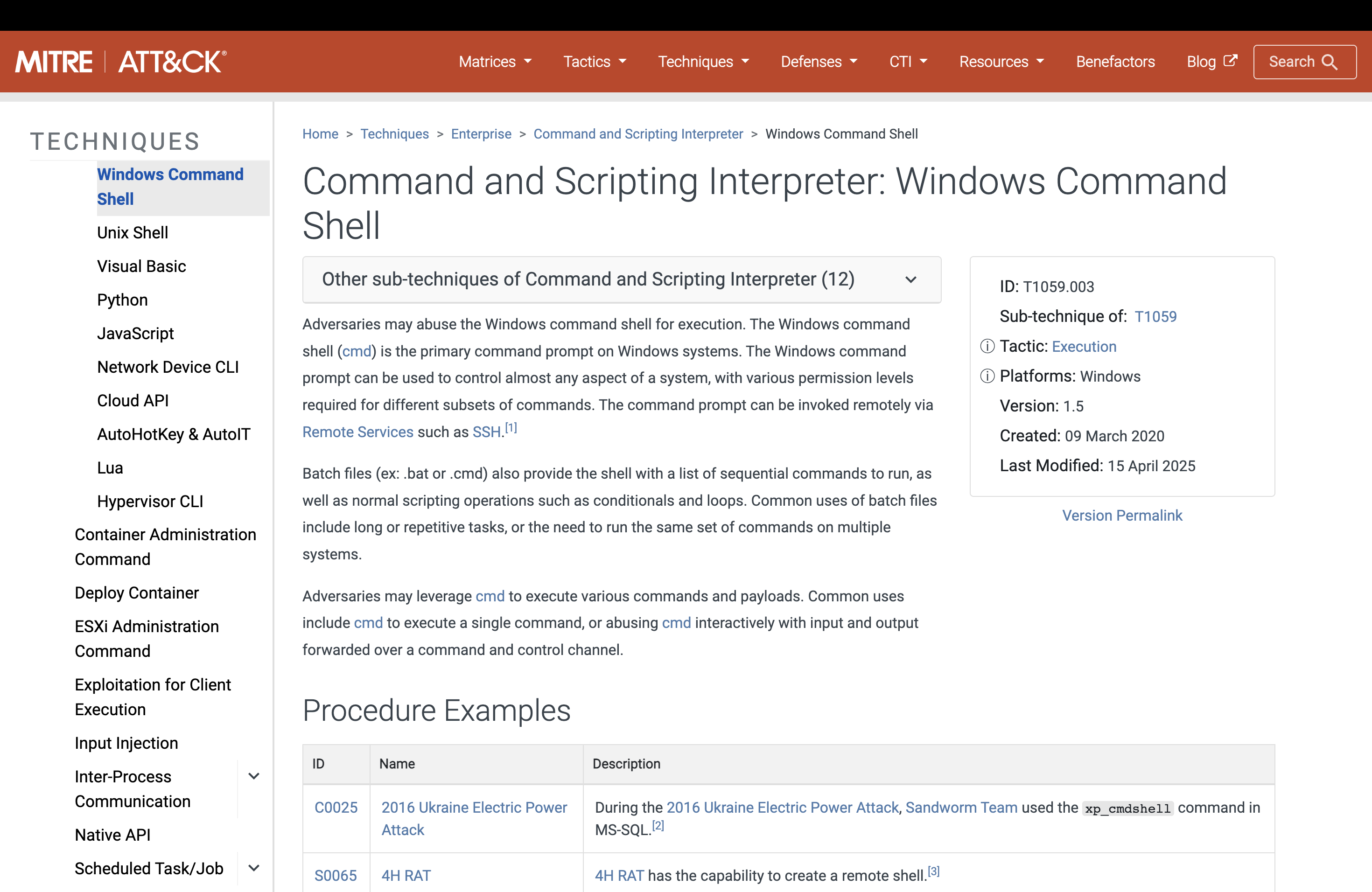
Mapping the Attack using the MITRE Framework
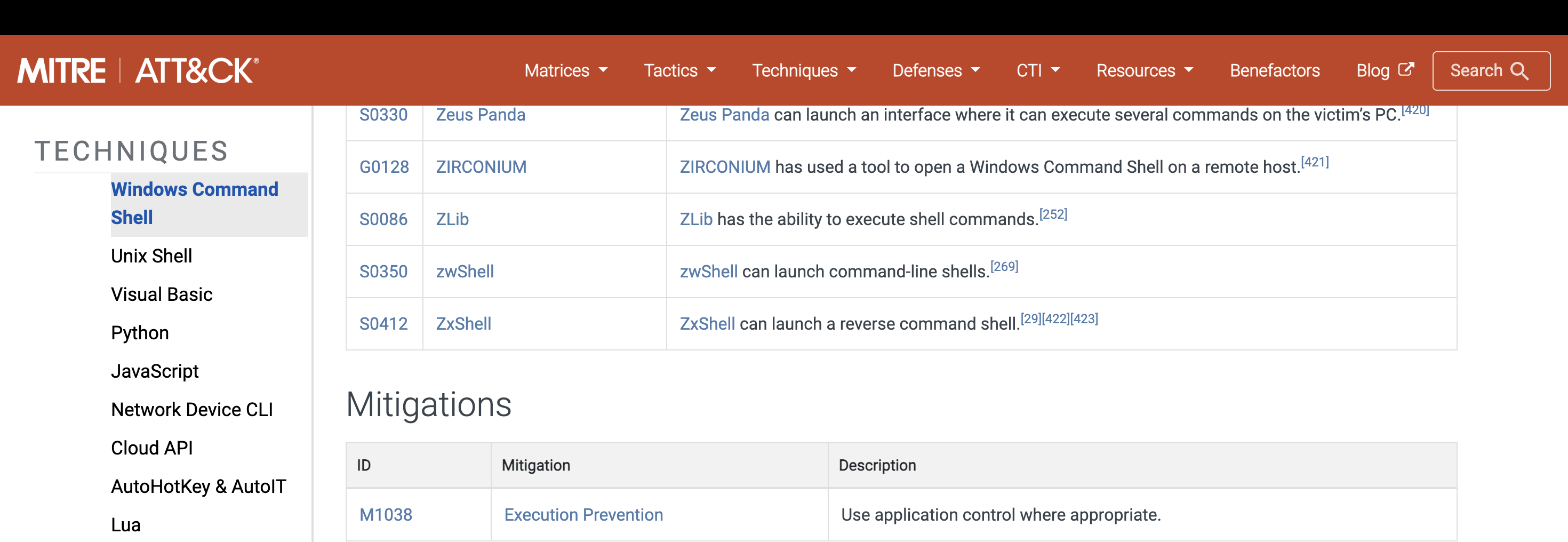
Mitigations For the Attack
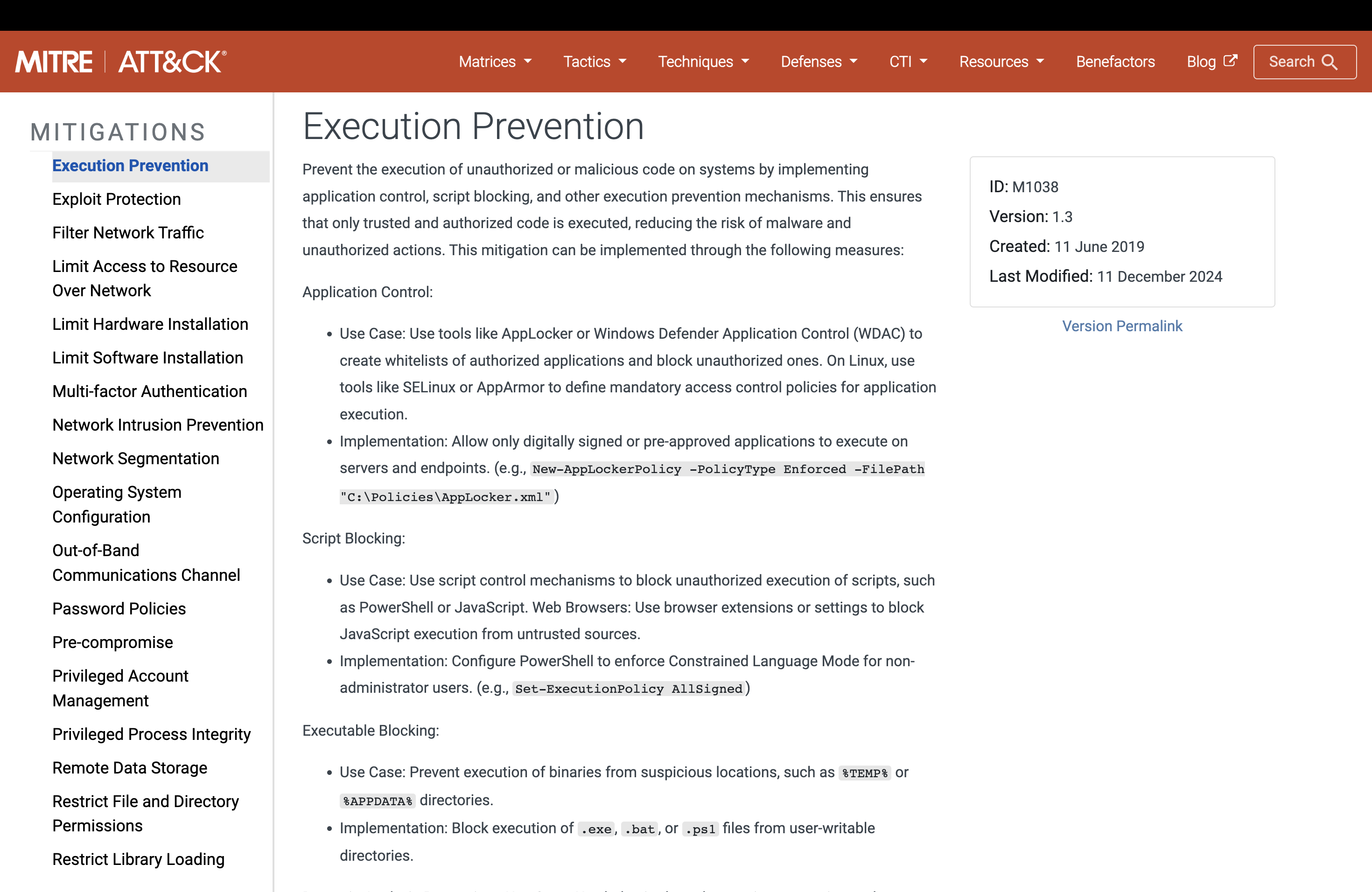
Execution Prevention Technique to mitigate the particular attack.
T1059.001-Power Shell
Technique: T1059.001- Power Shell. In your notes, record: victim ran a PowerShell process with suspicious flags (benign in lab), captured in Sysmon Event ID 1, command line visible.
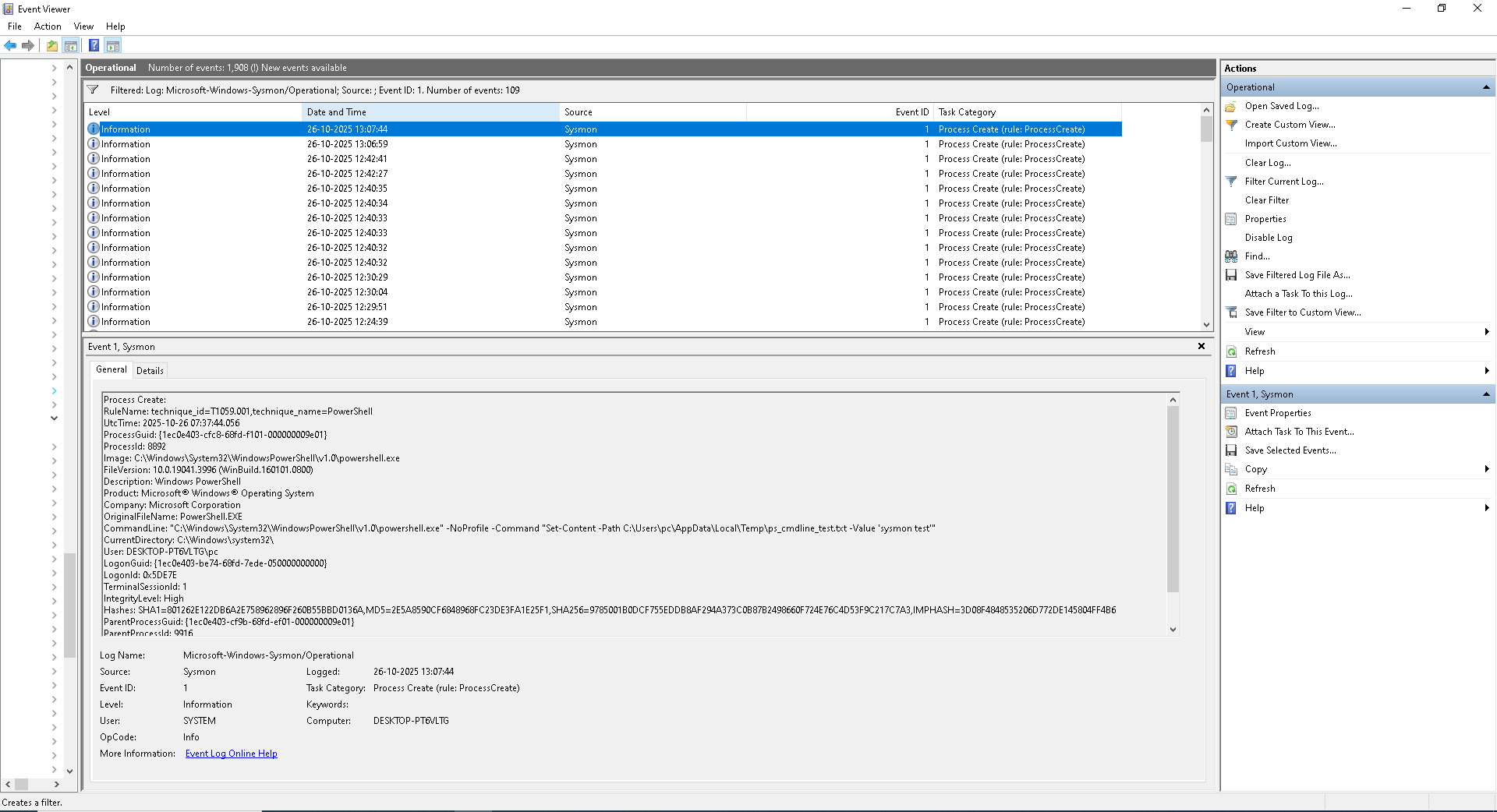
Power Shell Command Getting Detected in the Sysmon Tool
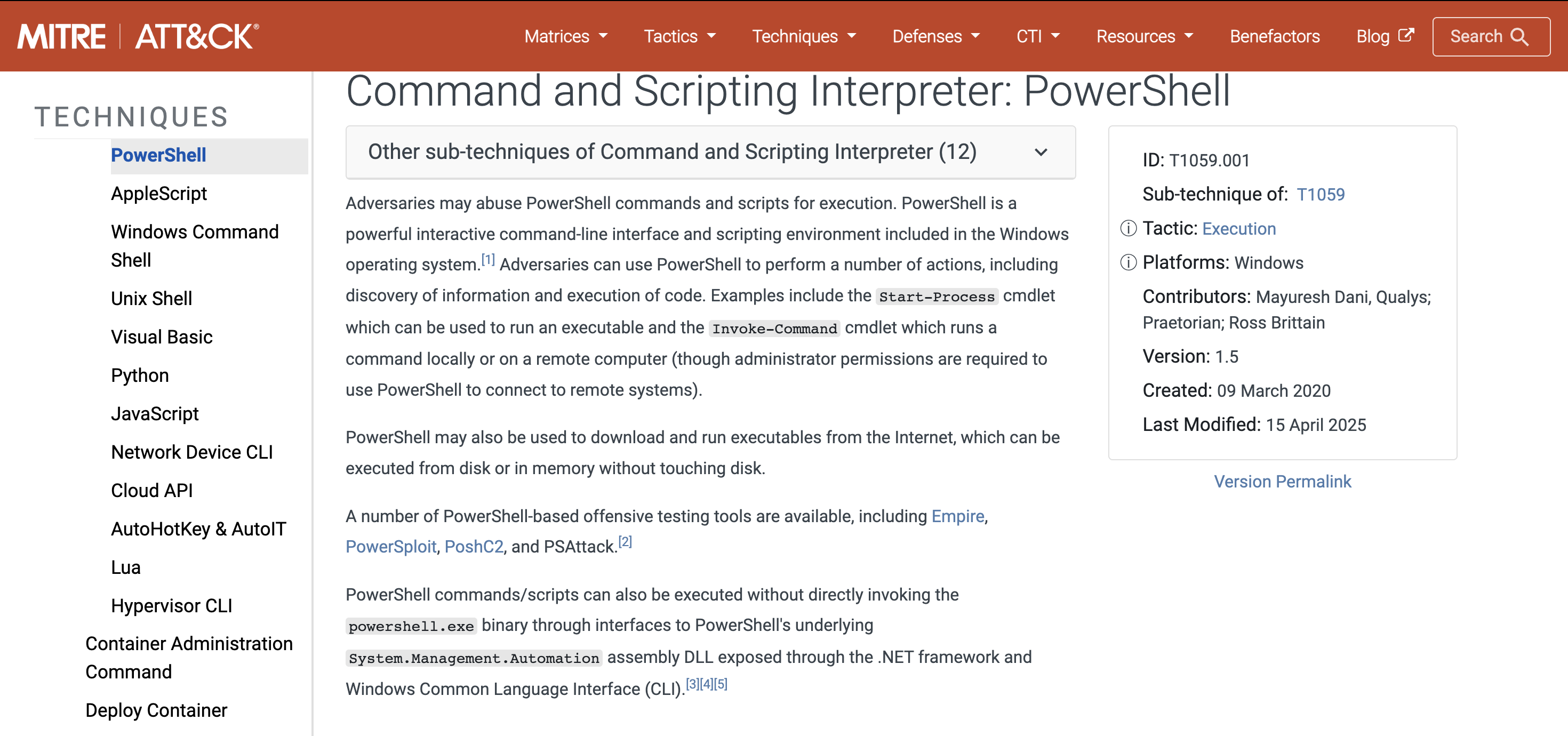
| Tactic | Technique | ID |
|---|---|---|
| Execution | Windows Command Execution | T1059.003 |
| Execution | Power Shell Command Execution | T1059.001 |
Results
| S.no | Installing Sysmon | Outcome | Observation/Analysis |
|---|---|---|---|
| 1. | Virtual machine | Failed | - Sysmon failed to install due to virtualization security restrictions inside the virtual machine. |
| 2. | Physical Desktop | Success | - Sysmon was successfully installed and able to detect and log the attack activity. |
Learnings
- Learned how to install the System monitor(Sysmon) in a windows machine.( ./Sysmon64.exe -i sysmonconfig.xml)
- Able to detect the malicious command line through “Event Viewer”. (Event ID 1)
- Handled the cyber attack by mapping it to the MITRE ATT&CK Matrix.
- Check which services are running using the “Services” tool.
- Able to remove the “Sysmon” tool using the “regedit”(Registry Editor). (You can remove it using ./Sysmon64.exe -u) asvwell.
Resources Used
- Sysmon Installation:- https://learn.microsoft.com/en-us/sysinternals/downloads/sysmon (More information about Event IDs)
- Sysmon Config file(Olafhartong):-https://github.com/olafhartong/sysmon-modular/blob/master/sysmonconfig.xml
- MITRE ATT&CK Framework:- https://attack.mitre.org/